
How it works
How JobZapp booking works
Browse workers on WhatsApp and JobZapp: set job type, where and when, see a shortlist and post.
Shortlist in chat. Card hold, pay and GPS stay in JobZapp.

How to book
Book your way
Browse workers on WhatsApp, or browse in JobZapp. Same booking, matching and payment either way.
-
Hi. Browse workers on JobZapp WhatsApp. Send a voice-note or tap Browse workers and we will do the rest.
Voice note: Cleaner tomorrow morning near Claremont, about 4 hours
Got it: domestic cleaner, tomorrow morning, about 4 hours near Claremont. Share your street pin so we match nearby.
Location pin shared
Matched 3 vetted cleaners nearby. Select workers, then post. They apply, you Book, a hold goes on your card. You only pay after the work is done.
Example WhatsApp chat On WhatsApp
Voice-note or text the job. Shortlist in chat. Card hold, pay and GPS stay in JobZapp.
-
Browse workers
After you post on WhatsApp
After you post: Workers apply directly in chat. Choose your preferred worker, tap the payment link to authorize a card hold, and your booking is confirmed.
-
Workers apply in chat
Invited workers reply on WhatsApp if they are available for your job.
-
Tap Primary or Standby
Choose your preferred worker, and add a Standby if you want cover.
-
Open the pay link
Tap the payment link to authorize a card hold. You only pay after the work is done.
For clients
Clients
From register to ratings, the client side of every JobZapp booking.
-
Step 1
Register
All users must complete their profiles. Verification requires ID and proof of address, with extra documents for businesses. On WhatsApp you can create a thin account in chat, then finish Private+ in the app.
-
Step 2
Book a Job
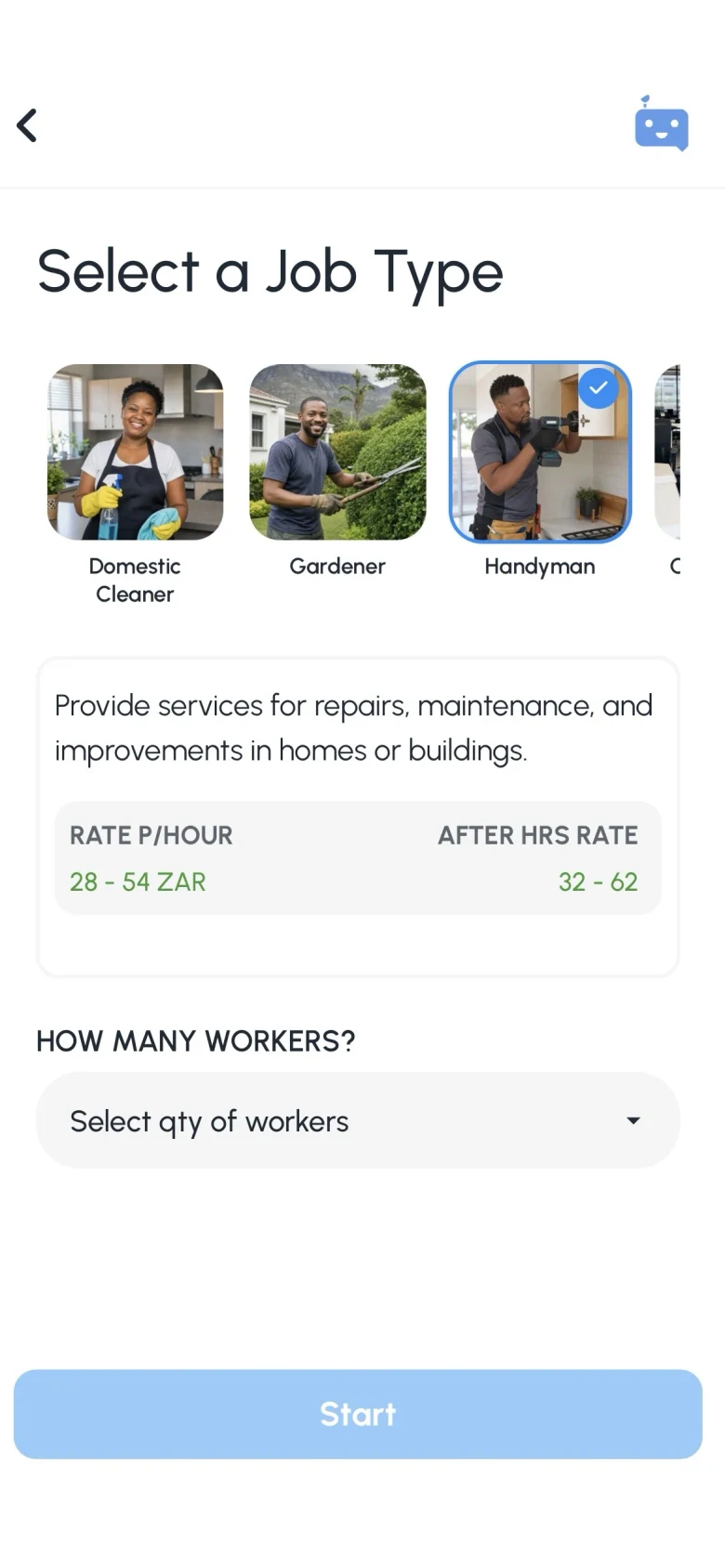
Browse workers on WhatsApp and JobZapp: set job type, where and when, see a shortlist and post. Or browse workers in JobZapp. The estimate covers the worker rate, booking fee, and any travel.
-
Step 3
Booking Confirmed
Invited workers apply. You Book. A hold is placed on your card. You only pay after the work is done.
-
Step 4
Job Completed
The worker clocks in by GPS, completes the job, and payment is processed automatically. There is no cash, which supports a safer experience.
-
Step 5
Ratings
Clients and workers rate each other after the job, helping keep JobZapp trusted and accountable.
Shortlist in chat. Card hold, pay and GPS stay in JobZapp.
Sign up on WhatsApp
Create a thin client account in chat after you select workers, then complete your profile and post in JobZapp.
Example chat. Post in under 2 minutes. You only pay after the work is done.
Shortlist in chat. Card hold, pay and GPS stay in JobZapp.
The essentials
What every booking relies on
Follow My Job, chat on the record, and Emergency sit on every live job.
-

Follow My Job
-

In-app chat
-

Emergency button
-

Vetted workers
-

Managed lifecycle
-
App, WhatsApp, and email
-

Extra Time
For workers
Shifts, vetting and pay
This page is for clients who book help. Workers start on Find Work.
Full worker steps live in Worker Help.
In detail
What happens at each stage
From posting to ratings, the rules behind every JobZapp booking.
-
Posting a job
You describe the work once and the details travel with the job, so nobody arrives unprepared. You can start as a guest and keep a draft quiet until you Post.
- Pick the role and the tasks you need covered.
- Set the date, start time, and how long you need.
- Add the address and any site notes or access details.
- See the estimate before Book, including worker rate, about 20% booking fee, and any travel.
- Shortlisted workers are not notified until you Post the draft.
-
Matching
Matching uses approved skills, availability, ratings, and location, with AI helping rank nearby workers who fit the job. Vetted workers in the area still apply, and you stay in control of who is booked. You can add an optional backup if you want cover.
- Only Vetted or Certified workers with approved skills get regular invites.
- Compare ratings and completed-job history before you confirm.
- Cancel free up to 4 hours before start; a late fee may apply inside that window.
- Book pending jobs at least 3 hours before start, or they auto-cancel with no charge.
-
On the day
The worker clocks in through the app so both sides have a record of the shift.
- Clock-in starts from about 10 minutes before the job and needs GPS within about 1 km.
- Accept clock-in in the app or from the WhatsApp prompt.
- Match their profile photo to the person on site before work starts.
- Share the job so trusted contacts see start and stop.
- Approve Extra Time in the app if the shift needs longer.
- Use Emergency or Security reporting if something goes wrong.
-
Payment
There is no cash and no chasing. Payment runs through JobZapp after completion.
- A card hold secures Book, and the charge runs after clock-out.
- Pay Extra Time separately if you extended the shift.
- An invoice is emailed when the job is done.
- Tips are optional and go 100% to the worker.
- Every job leaves a digital record for your books.
-
WhatsApp actions
WhatsApp is the secondary ping for priority moments, with quick replies when you need to act fast.
- Workers can Apply or Decline invites, Clock out near the authorised end, and tap Need help on vetting updates. Common questions can be answered immediately, and JobZapp Support steps in when the case needs a person.
- Clients can Accept when a worker has clocked in.
- App push stays primary, and email carries receipts and longer detail.
- Clock-in and Extra Time stay in the app because they need GPS and card payment.
-
Ratings
Both sides rate each job. Late cancels and no-shows can also trigger cards.
- Rate the worker after the job closes.
- Workers build a public rating from real paid jobs.
- Yellow, Purple, or Red cards can pause invites after late cancel or no-show.
- Report a problem through support if something goes wrong.
Tips
Get the most out of a booking
A few habits that make jobs run smoothly for both sides.
- Be specific about tasks when you post, so expectations are clear before anyone applies.
- Say what equipment and products are already on site.
- Book with as much lead time as you can, especially for night shifts.
- Mention access details like gate codes, parking, and building security.
- Confirm your applicant early so they can plan their travel.
- Rate honestly after every job, because feedback keeps the platform useful.
FAQ
Common questions
-
How far ahead should I book?
Lead time is at least 6 hours by day, or 12 hours at night. You must Book a pending job at least 3 hours before start, or it auto-cancels with no charge.
-
Can I cancel for free?
Yes. You can cancel free up to 4 hours before the job starts. Inside that window a late fee may apply for worker travel and preparation.
-
Do I pay cash on the day?
No cash needed. All payments are handled securely through the app.
You will see a clear upfront estimate covering the worker's rate, booking fee, and travel. We only place a temporary hold on your card when you book, and you are charged after the job is completed.
-
Are workers vetted?
Yes. Every worker must complete a vetting process, including document verification, an interview, and reference checks before receiving regular job invites. Each skill is individually reviewed, so workers are only matched with jobs they are fully approved for.
-
Can someone I trust follow the job?
On each booking you can share the job with up to two trusted contacts. They get notified when work starts and stops, which is useful if you are not home when someone arrives, or if a worker wants someone following their shift.
-
What happens in an emergency?
From a live job, Emergency sends a WhatsApp and SMS to your trusted contacts with your message and location. Security notifies your contacts and JobZapp Support so the platform can act on the record.
-
How will JobZapp reach me about a booking?
The JobZapp app is the main way we reach you. It is where you get instant notifications, tap Accept when a worker clocks in, or add Extra Time.
WhatsApp is the secondary ping for high-priority alerts, with quick replies where they apply. On WhatsApp Help, JobBot answers common questions first. Chat to a person reaches Care in the same thread when you need a human. Email carries detailed receipts and invoices. If you have already taken action in the app, we do not send a duplicate WhatsApp or email message.
Need more detail? See Client Help.
Get started
Try it on your next job
Browse workers on WhatsApp and JobZapp: set job type, where and when, see a shortlist and post. Ask JobBot for common questions.
Shortlist in chat. Card hold, pay and GPS stay in JobZapp.
See the estimate first, cancel free up to 4 hours, follow Book Status live, and only pay after the work is done. Safety & Trust